
A context is a reusable set of legal sources and instructions. Instead of repeating “stick to the Obligations Act and the GDPR, interpret conservatively, cite verbatim” in every message, you write it once — as a context — and switch it on when needed.
Contexts solve three problems: repeating the same instructions for a practice area; the assistant wandering beyond the sources you trust; and know-how that lives only in one senior colleague’s head. Written down as a context and shared with the team, that practice applies to every answer.
Not to be confused with the Context button (legislation and MCP connectors). Two neighbouring buttons sit in the composer: Context decides where Eulex Desk may search; Contexts (the layered icon) decides what it must limit itself to and how it should work.
Key terms
| Term | Meaning |
|---|---|
| Context | A named set of sources and instructions. It has an owner and can be shared. |
| Source | A legal instrument, an article, a court decision, or a web link that the assistant limits itself to. |
| Instructions | Free text (Markdown) with working rules: methodology, tone, answer structure. |
| Pinned source | An article the assistant always retrieves in full and cites verbatim before answering. Articles only. |
| Active context | Switched on for your account — applies to every new conversation until you switch it off. At most 5 at once. |
| Attached context | Tied to a workflow or a project — applies automatically within it. |
Creating a context
- Open Contexts in the sidebar (or
/contexts) and click New context. - Enter a name (required) and, optionally, what the context is for. Click Create context.
- Fill in the Sources, Instructions, and — for the owner — Sharing tabs, then Save changes.
The Contexts page lists every context you own or that has been shared with you, with a switch to activate it. Active contexts are highlighted.
Sources
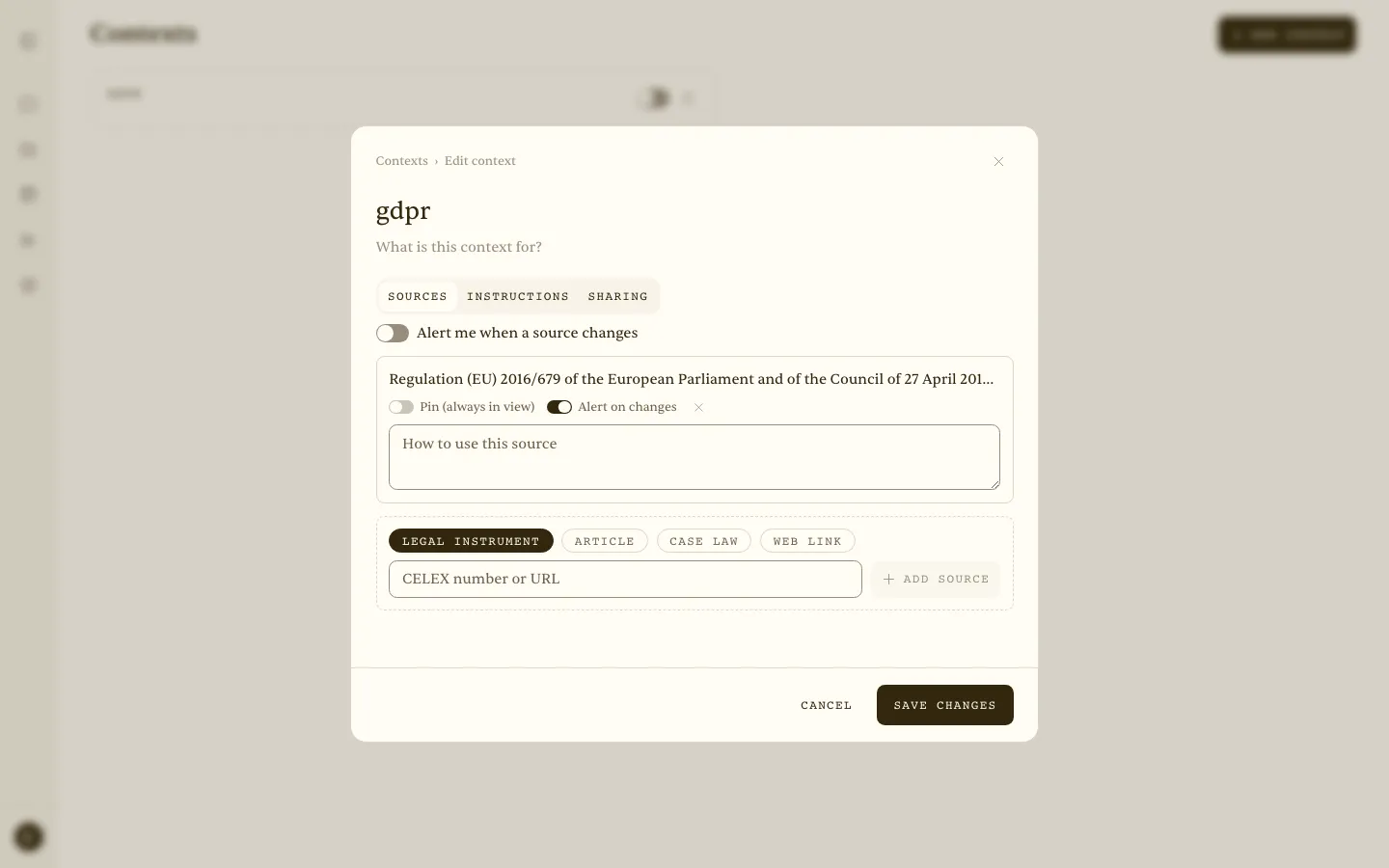 Edit context — the Sources tab: Regulation (EU) 2016/679 as a legal instrument, with Pin, Alert on changes, and a note on how to use the source.
On the Sources tab, choose the kind — Legal instrument, Article, Case law, or Web link — enter the CELEX number or URL (32016R0679 for the GDPR, a Croatian regulation reference, a case number, or any https address), and click Add source.
Each source has three settings:
- Pin (always in view) — articles only. A pinned article is retrieved in full before every answer and cited verbatim. Use it for the one or two provisions everything turns on.
- How to use this source — a note per source (“use only for definitions; for deadlines see the delegated regulation”). Useful when sources partly conflict.
- Alert on changes — notifies you when the source is amended. Available for EU (CELEX) sources; for other kinds the switch reads “Alerts not yet available for this source”.
Instructions
The Instructions tab is a Markdown editor for the rules that hold while the context is active: methodology (“check applicability ratione materiae first, then the merits”), answer structure (“rule → exceptions → practice → recommendation”), terminology and tone, and limits (“do not go into tax consequences”). Instructions are capped at roughly 8,000 characters.
Confidentiality — instructions and source notes go to the AI model verbatim and do not pass through the PII shield. Do not put client personal data in them; write generically (“the client”, “company A”).
Activating a context
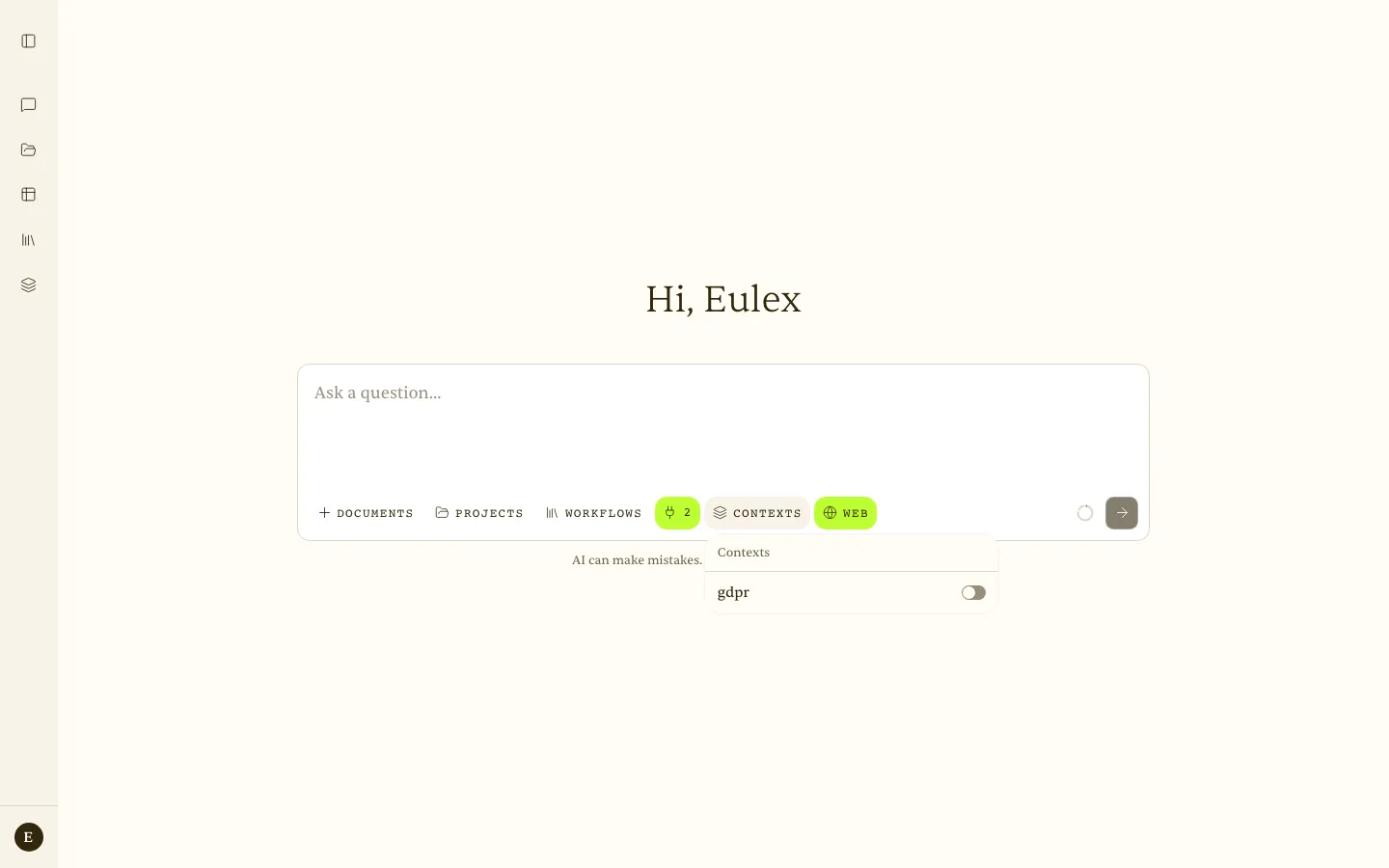 The Contexts button in the composer — switch a saved context on for the chat.
Switch a context on from its card on the Contexts page, or from the Contexts button in the composer, which lists your contexts with switches. While at least one is active, the button shows the count and a chip with each active context’s name sits above the field; click a chip to Open or Deactivate it.
Activation is per account: it holds for every new conversation, on every device, until you switch the context off. At most 5 contexts can be active at once. The composer button appears once you have at least one context.
How a context changes the answers
- Scope. When searching legal corpora, material outside the context’s sources is removed from the results and from the source list. Direct retrieval of a document that is not on the list is refused.
- Abstention. If the answer is not in the listed sources, Eulex Desk says so and offers to search outside the context — the decision is yours.
- Pinned sources first. Pinned articles are retrieved in full before the answer and cited verbatim.
- Your instructions apply to every answer, ahead of the general settings.
- Active contexts add up. The sources and instructions of every active context apply together, so make sure they do not contradict each other.
Contexts apply to Assistant conversations, project conversations, and workflow runs. They do not restrict Web search or non-legal connectors, and they do not apply to tabular reviews.
Save as context
The fastest way to create a context is from a conversation that went well. Under an answer, next to the source list, click Save as context, name it, and click Draft instructions. The sources cited in the conversation are offered as Sources from this chat, and Eulex Desk drafts the instructions from the transcript. Review and edit the draft, then Save context.
Attaching to workflows and projects
Instead of switching a context on by hand, attach it: on a workflow page or a project page, click the layered Contexts icon and select the contexts. Attached contexts apply automatically on every run of the workflow, or in every conversation of the project. Attaching requires edit access to the context, and it does not extend access — a colleague without access to the context runs the workflow without it.
Sharing
On the Sharing tab (owner only), enter a colleague’s email, optionally tick Can edit, and click Share. Without edit rights, the colleague can read and use the context; with them, they can change sources and instructions and attach the context to workflows and projects. Only the owner can delete a context.
Source-change alerts
Switch on Alert me when a source changes on the Sources tab, then Alert on changes on the individual sources. When a tracked source is amended, the context’s card shows a count of recent changes (the last 14 days). Alerts currently cover EU (CELEX) sources.
Limits and good practice
| Limit | Value |
|---|---|
| Active contexts at once | 5 |
| Instructions size | ~8,000 characters |
| Pinning | Article sources only |
| Change alerts | EU (CELEX) sources only |
| Applies to | Assistant, projects, workflows — not tabular reviews |
- One context, one topic. “Employment — dismissals” works better than “All employment law”. A narrower context gives sharper scope and more precise answers.
- Pin little, retrieve much. Pin one to three key articles; leave the rest as retrieved sources.
- Source notes resolve conflicts. When two sources cover the same ground, say which one takes precedence.
- Switch a context off when you change topic. An active public-procurement context restricts a criminal-law question too.
- No personal data in instructions.
Scenario — DORA compliance — A lawyer advising three financial-sector clients creates a “DORA compliance” context: the DORA regulation (CELEX) and two delegated regulations as sources, a supervisory guideline as a web link, and the instruction “always check whether the entity is in scope under Article 2 first; distinguish ICT risk from operational risk; structure answers as obligation → deadline → sanction”. When a client question arrives, she switches the context on and asks. The answer draws only on the listed instruments, in the structure she set — and if the question falls outside DORA, Eulex Desk says so.
