
Built-in templates for recurring legal tasks. Each one is either an Assistant (a guided conversation) or a Tabular review. They standardise how the team works and bring junior staff up to speed.
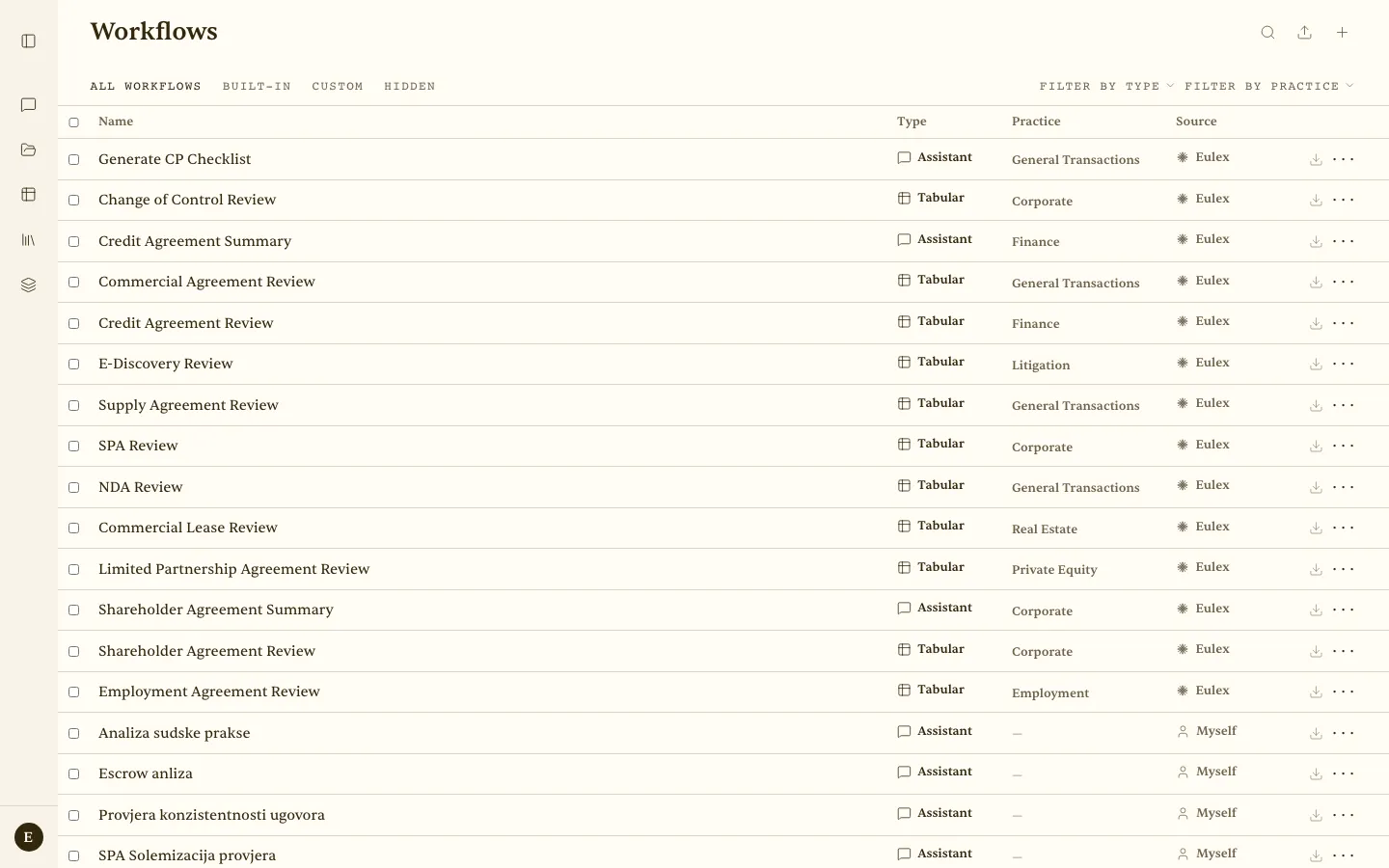 Workflows — the built-in list (source: Eulex) followed by your own (source: Myself), with filters by type and practice area.
Built-in workflows
| Name | Type | Practice area |
|---|---|---|
| Generate CP Checklist | Assistant | General Transactions |
| Change of Control Review | Tabular review | Corporate |
| Credit Agreement Summary | Assistant | Finance |
| Commercial Agreement Review | Tabular review | General Transactions |
| Credit Agreement Review | Tabular review | Finance |
| E-Discovery Review | Tabular review | Litigation |
| Supply Agreement Review | Tabular review | General Transactions |
| SPA Review | Tabular review | Corporate |
| NDA Review | Tabular review | General Transactions |
| Commercial Lease Review | Tabular review | Real Estate |
| Limited Partnership Agreement Review | Tabular review | Private Equity |
| Shareholder Agreement Summary | Assistant | Corporate |
| Shareholder Agreement Review | Tabular review | Corporate |
| Employment Agreement Review | Tabular review | Employment |
Workflows are filed under practice areas — General Transactions, Corporate, Finance, Litigation, Real Estate, Private Equity, Employment, Tax, IP, Competition, Tech Transactions, Project Finance, EC/VC, Private Credit, ECM, DCM, Lev Fin, Arbitration, and Others.
Custom workflows
The Custom tab shows your own workflows (source: Myself). Create one in the interface, or describe what you need in Refine workflow with AI and let Eulex Desk draft the columns, prompts, and instructions for you to edit. Workflows can also be written in YAML. The Hidden tab holds deactivated built-in workflows.
A workflow can carry attached contexts: click the layered Contexts icon on the workflow page, and the chosen contexts apply automatically every time the workflow runs.
How to use a workflow
- In a conversation or new review — click Workflows in the toolbar, or select a template when creating a new tabular review.
- Select a template — a
[Workflow: Name]tag is added to your message, and Eulex Desk loads that workflow’s instructions. - Attach a document and send — Eulex Desk applies the template columns or instructions to your document.
Scenario — CP list at closing — A junior selects Generate CP Checklist, attaches a 60-page credit agreement, and gets a structured conditions-precedent (CP) list with status and citations, instead of extracting it by hand.
